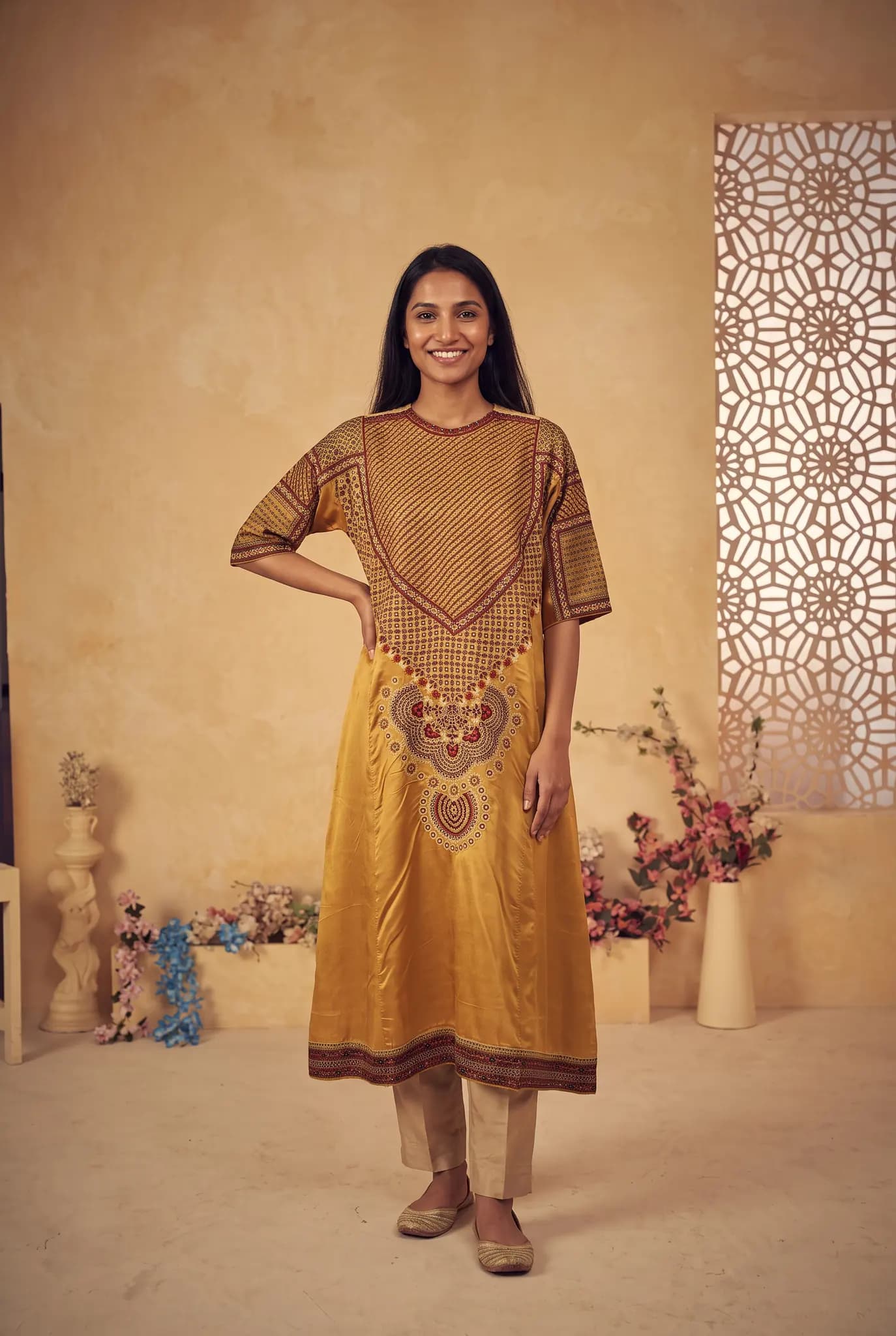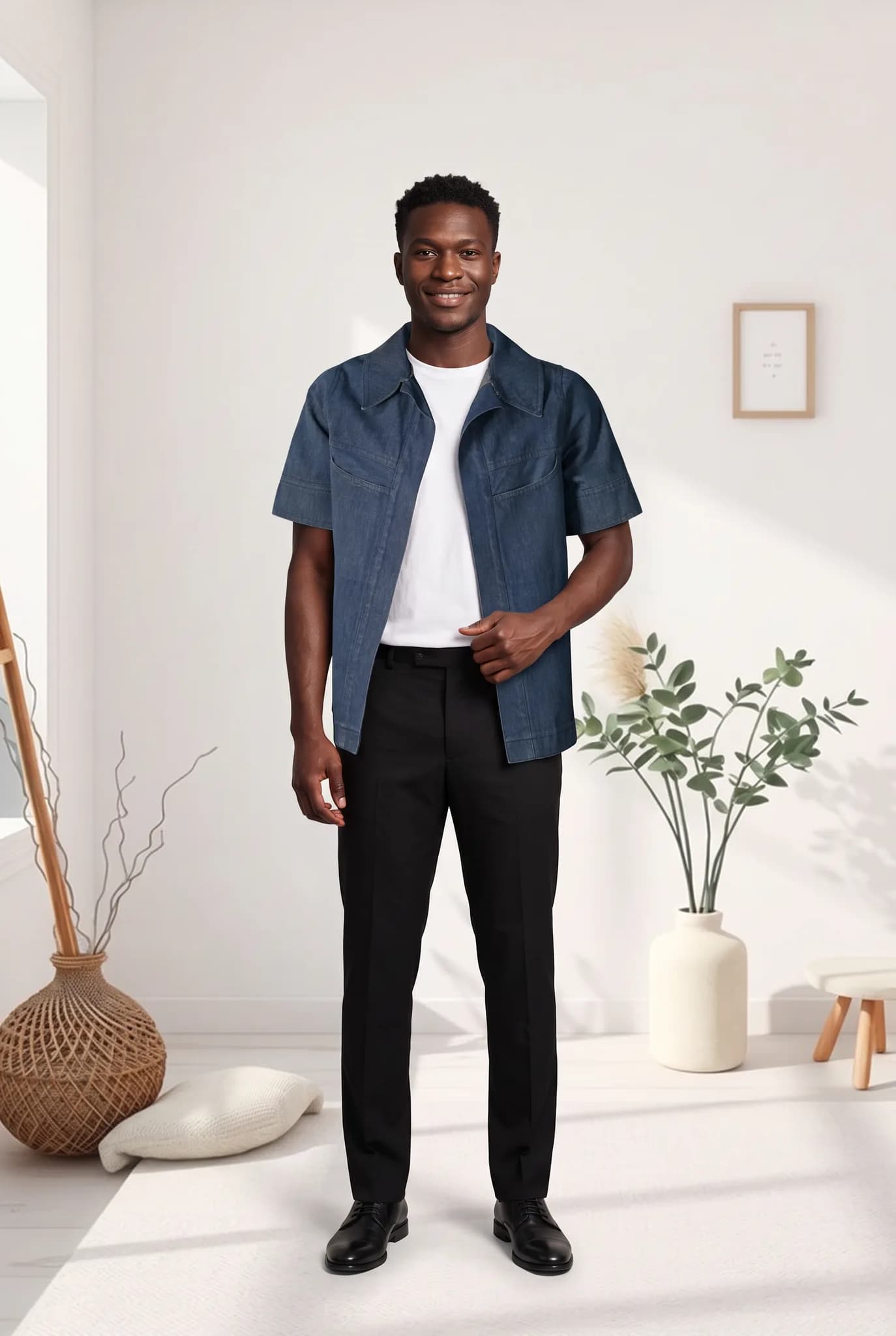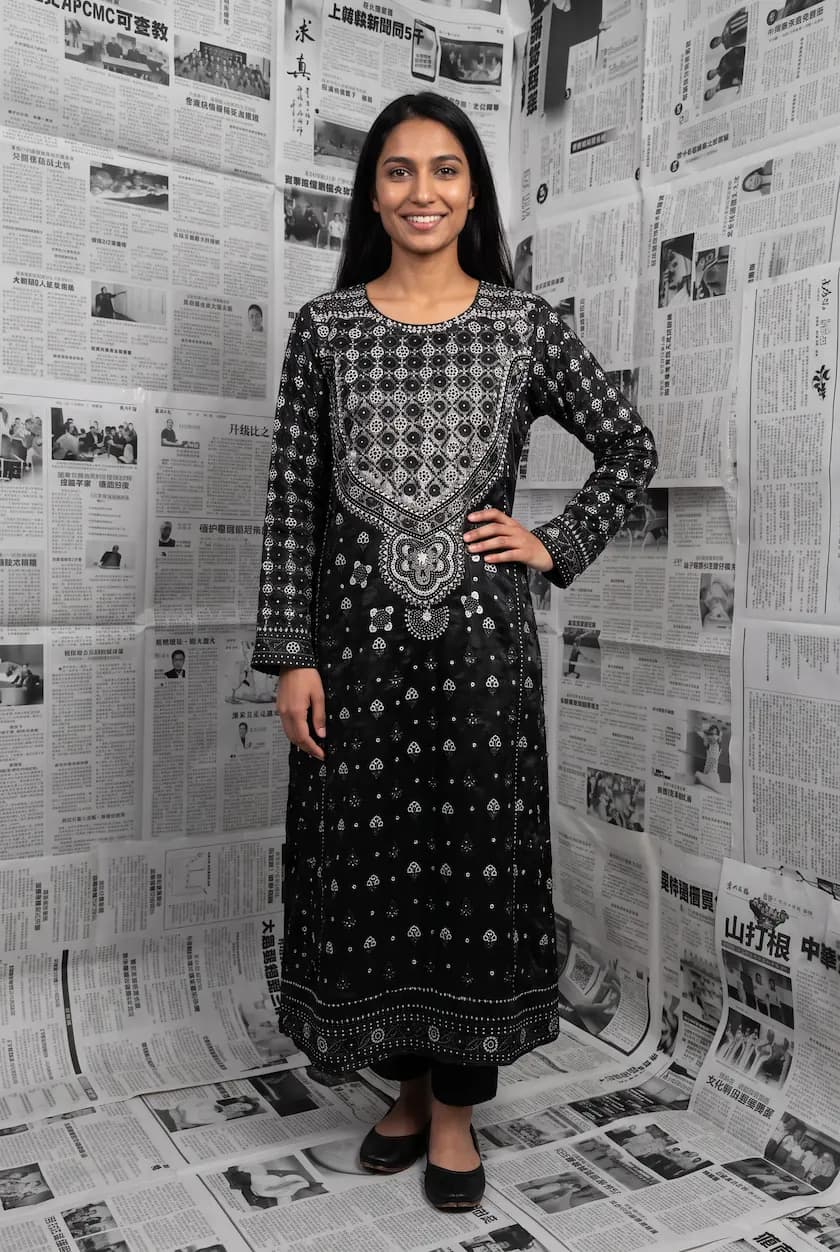
How to Keep AI Fashion Models Consistent and On-Brand
How to use the same AI model across a whole catalog so your store looks like one shoot, and how to keep AI fashion photos on-brand from drop to drop.

Haziq Qasmi
· 7 min read
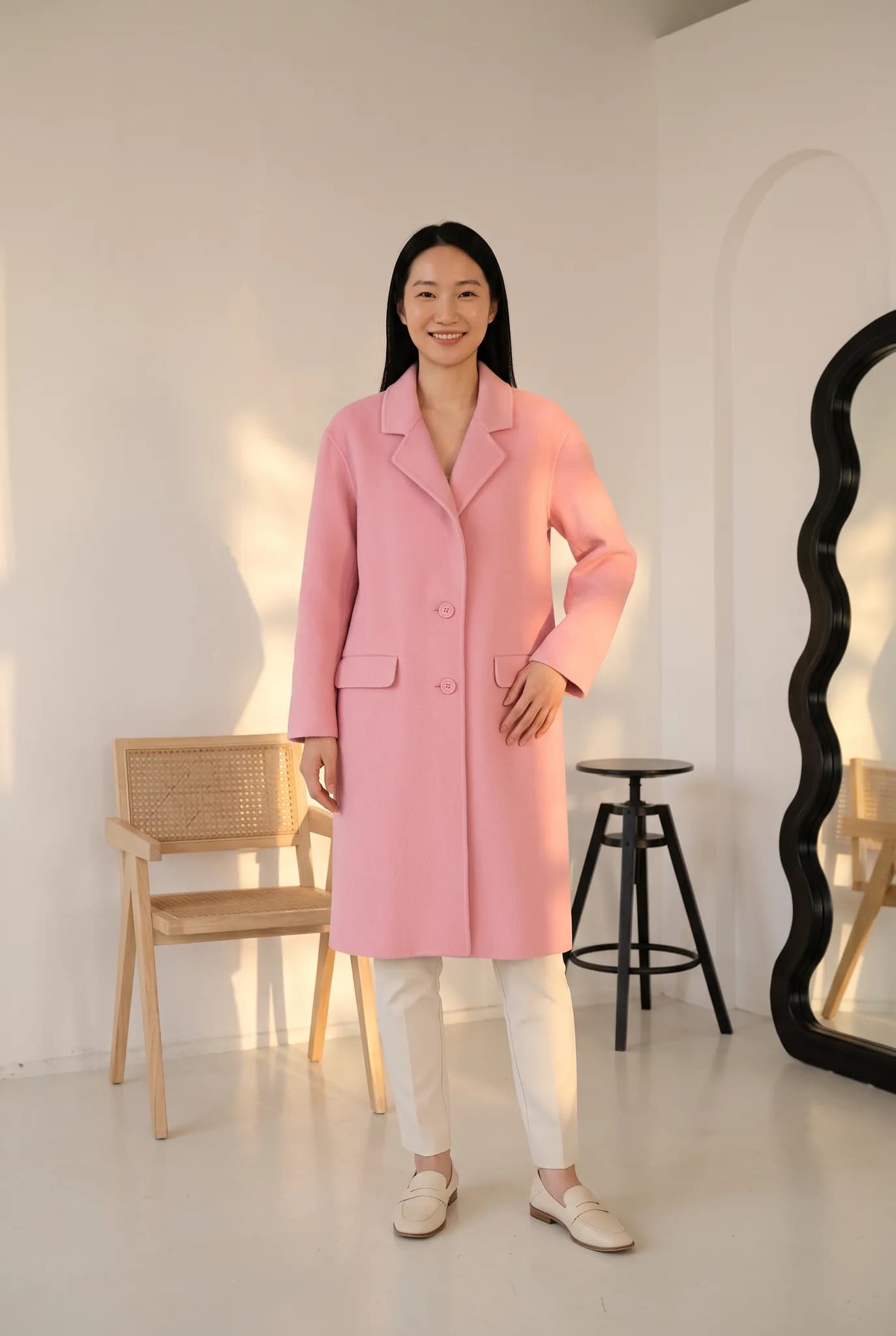
The fastest way to make a store look cheap is to show every product on a different face, in a different light, in a different room. Shoppers read that as a shop that buys stock photos, not a brand. On-brand AI models fix this, but only if you set them up the right way.
This guide shows how to keep your AI fashion models consistent across a large catalog and how to keep every photo on-brand.
Why consistency matters more with AI
With a real photoshoot, consistency comes for free. One model, one photographer and one studio on one day give you a matching set. With AI, every photo is made on its own. If you pick a random model and scene each time, the catalog drifts apart quickly.
The good news is that AI also makes consistency cheap once you plan for it. You make the decisions once and reuse them on every product.
Step 1. Decide your brand look before you generate
Write down a short brand look. Keep it to a few lines, for example:
- Who wears it. Age range, style and the customers you sell to.
- Where. A clean white studio for product pages, one warm indoor room for social media.
- Light. Soft daylight, or bright and even.
- Poses. Relaxed standing poses for the main image, one walking pose for movement.
This takes ten minutes and saves you from hundreds of photos that do not match.
Step 2. Create your own AI models and save them
Instead of picking a different ready-made model for each product, create a small cast of your own and save them. In Modelfy you can describe the traits you want or add reference photos of a person you have permission to use. Creating a model uses 8 credits, once. After that you pick the saved model in every shoot.
A small cast is enough for most brands:
| Store size | Suggested cast | Why |
|---|---|---|
| Small shop, one customer type | 1 to 2 models | One face becomes part of your brand |
| Growing brand, a few ranges | 3 to 4 models | One model per range or customer group |
| Large catalog, several markets | 6 or more models | Models for each market, used the same way every time |
Silver includes 4 custom AI models, Gold 6 and Studio 20. See the AI model generator for how it works.
Step 3. Reuse the same scenes and poses
A matching model is only half of it. Save the backgrounds and poses that fit your brand look and reuse them too. Then a new product added in March looks like it came from the same shoot as one added in January.
A simple rule works well. Use one scene for every main product image, and only change scenes for lifestyle and social photos.
Step 4. Keep your starting photos consistent
The garment photo you upload affects the result. If one product is shot in daylight and the next under a yellow lamp, the colours drift. Take every flat lay or hanger photo in the same spot, with the same light and background. Our guide to turning flat lays into model photos covers the setup.
Step 5. Check every photo against the real garment
On-brand also means honest. Before a photo goes live, check:
- The colour matches the real fabric
- Prints, logos and stitching are correct
- The length and fit look right for the size shown
A photo that looks great but shows the wrong colour leads to returns, and returns cost more than any photo.
Common mistakes that break consistency
- Picking a new model for every product because each one looks good on its own
- Mixing many scenes on the main product images
- Changing the light of your starting photos from batch to batch
- Skipping the check before publishing
A consistent catalog without a reshoot
With a saved cast of AI models, saved scenes and a steady way of taking your garment photos, a catalog of hundreds of products can look like one shoot. New drops match the old ones without booking a studio again.
You can try it on your own range for free. A Modelfy account comes with 10 credits, up to 5 photos, with no card needed. Create a free account, and put one garment from your range on a model.
Was this article helpful?
See your own garment on a model
Upload a phone photo of a piece you sell. Your 10 free credits make up to 5 photos, and a photo is usually ready within minutes.
Start for free