
Free AI background remover for clothing photos
Remove the background from a garment photo and download a transparent PNG. It runs in your browser, so you do not need an account or credits, and your photo is not uploaded.
- Cost
- Free, no credits
- Account
- None needed
- Runs on
- Your own device, in the browser
- You get
- A transparent PNG
Choose a garment photo
Click to pick a photo from your phone or computer. It is processed on your device and is not uploaded.
The first time you use it, your browser downloads the AI model, about 40 MB in Lightning mode and about 80 MB in Studio mode. On mobile data, you may want to wait for Wi-Fi.
What this background remover does
It separates the garment or person in your photo from everything behind it, and makes the background transparent. You can then place the cutout on white for a product listing, or on any design you like.
The AI runs on your own device, not on our servers. That means your unreleased designs stay with you, and there is no credit counter or daily cap in this tool. It also means speed depends on your phone or computer.
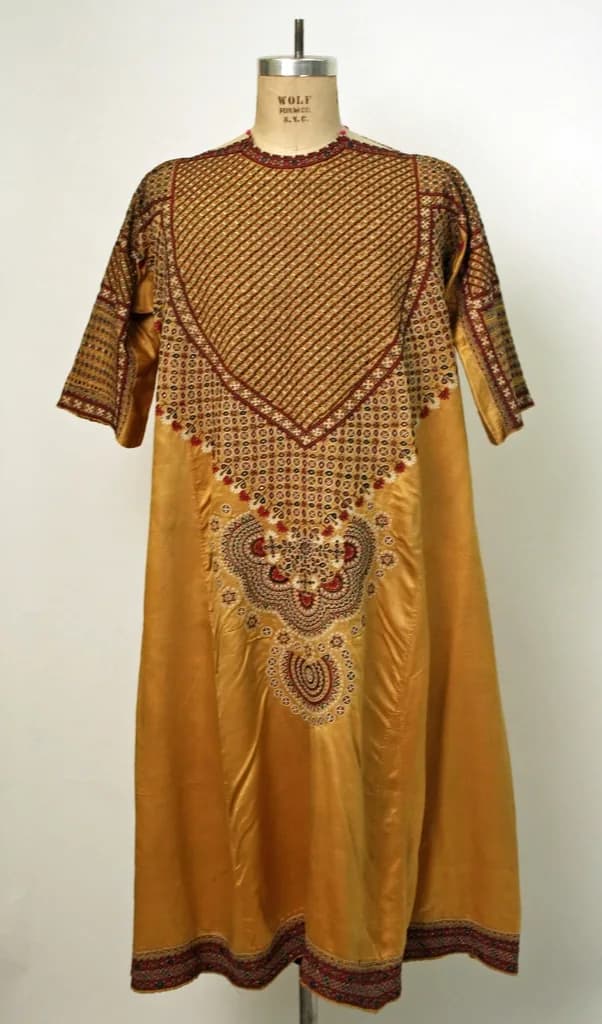
Who it is for
Sellers cleaning up phone photos
You photograph stock at home or in the shop and want the room gone from the picture.
Store owners preparing listings
Many marketplaces and stores look better with clean product images on a plain background.
Anyone making social posts
Put a garment cutout onto your own colors, sale banner or Instagram design.
How to remove a background
No signup. Everything happens on this page.
Choose your photo
Click the box above and pick a garment photo from your phone or computer.
Pick a mode
Lightning uses a smaller model and is the quicker choice. Studio uses a larger model that can take longer and may handle detail better.
Press Remove background
Wait for it to finish. The first run takes longest because the model has to load.
Download your PNG
Check the edges, then press Download PNG. If you are not happy, try the other mode.
What you get
- A PNG file with a transparent background.
- The same pixel size as the photo you put in. PNG is a lossless format, so the tool does not add compression.
- Two modes, so you can try a second pass on a difficult photo.
- No watermark, account or credit cost.
Honest limits
- It is not perfect. Lace, sheer fabric, loose threads and fine hair can come out with rough edges or small holes.
- A white garment on a white wall is hard, because the AI cannot see where one stops and the other begins.
- A hanger, or a hand holding the garment, may stay in the cutout. The tool decides what counts as the main subject.
- Old phones and low-memory devices can be slow, and very large photos may fail. If so, try a smaller copy.
- It only removes the background. To add a white background, or put the piece on a model, you need another step.
Tips for a good input photo
A clean cutout starts with a clean photo.
Add contrast
Use a background that differs from the garment. Put a light piece on a dark sheet and a dark piece against a light wall.
Keep the background simple
A plain wall or sheet gives a far better edge than a busy room.
Light it evenly
Daylight from a window avoids hard shadows, which can be mistaken for part of the garment.
Keep it sharp
Hold your phone steady and tap to focus. A blurry edge stays blurry after the background goes.
Background remover questions
Something else? Write to [email protected].
Is it really free?
Yes. It runs on your own device, so it does not use credits or need an account. There is no daily cap in the tool.
Is my photo uploaded?
No. The photo is processed in your browser. Your browser does download the AI model file from our site, but your photo does not go the other way.
Does it reduce quality or compress my image?
The result keeps the pixel size of your photo and saves as PNG, which is lossless. PNG files can be large. The edge quality still depends on your photo.
What is the difference between Lightning and Studio?
Lightning uses a smaller model of about 40 MB. Studio uses a larger model of about 80 MB, and it is slower. Try Lightning first, and switch if the edges are not good enough.
Can I use it for lace and sheer fabrics?
You can try, but these are the hardest cases. Expect some rough areas, and use a high-contrast background to give it the best chance.
Why is the first run slow?
The AI model loads into your browser the first time. Later photos on the same visit are usually quicker.
Can I remove backgrounds from many photos?
Yes. Use the Batch Background Remover. It does the same job for a set of photos and gives you one ZIP file.
Was this tool useful?
We use ratings to decide what to improve. We do not publish them.
Clean photo ready? Put it on a model.
Modelfy can turn the same garment photo into an on-model photo. This part happens in the studio and uses credits. Free signup includes 10 credits, up to 5 photos.
More tools for clothing sellers
Some run free in your browser. Others use credits in the Modelfy studio. Each one says which.
View all tools- Batch Background RemoverRemove backgrounds from a whole folder of photos and download them together as a ZIP.Free in your browser
- Batch Instagram ResizerFit many product photos to Square, Portrait or Story without cropping them.Free in your browser
- AI Fashion PhotoshootUpload a garment photo and put it on an AI model without writing a prompt. From 2 credits a photo.Uses studio credits
- MSRP and Retail Price CalculatorAdd up your cost per garment and see a suggested retail price, wholesale price and margin.Free in your browser
Latest from our blog
Practical writing on AI fashion photography, selling clothes online and building a brand.
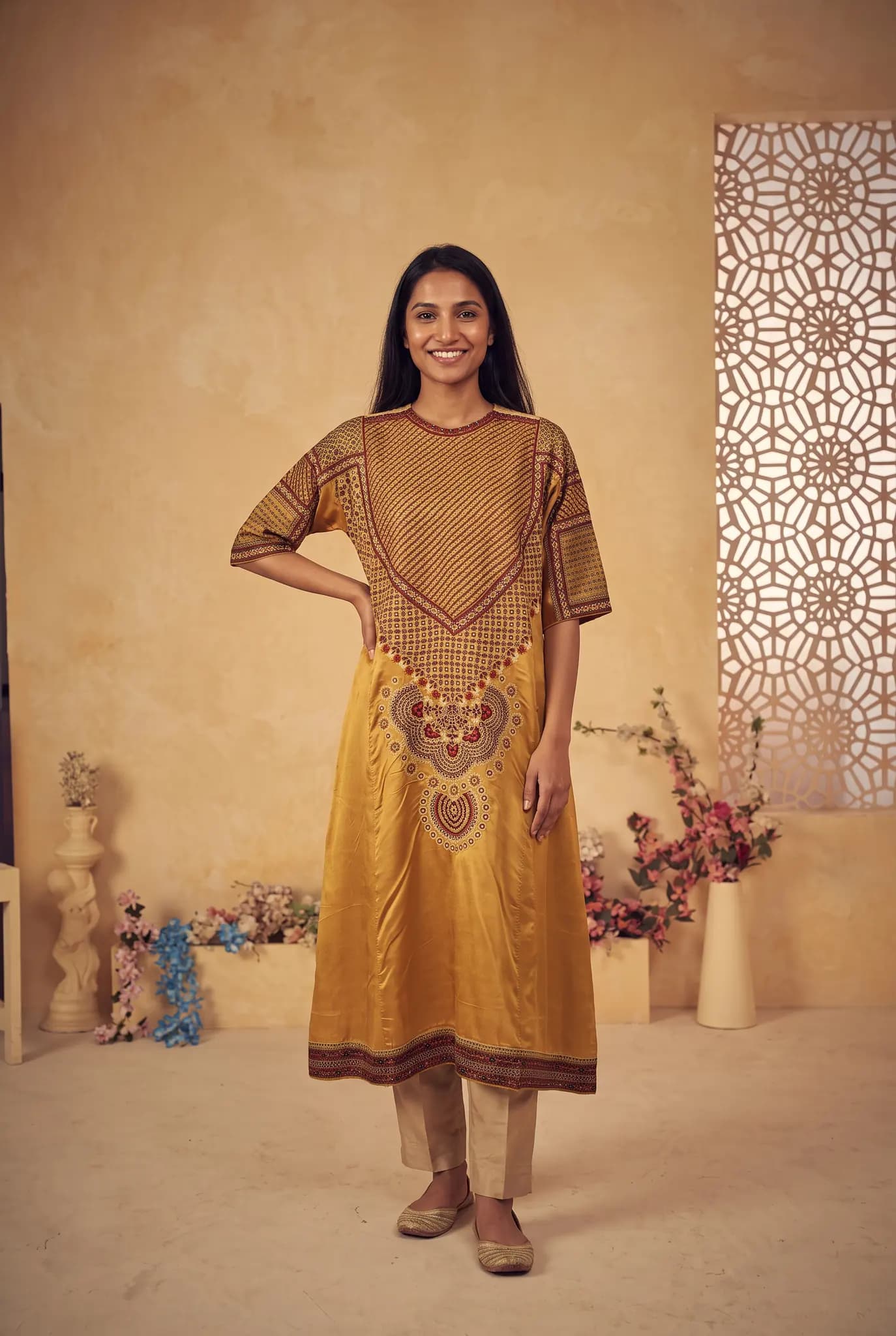
November 9, 2026 · By Haziq Qasmi
AI Photoshoot for Clothing Brands, a Practical Guide
How an AI photoshoot works for clothing brands: what you upload, what you get, what it costs, and how to plan a full product shoot without a studio.
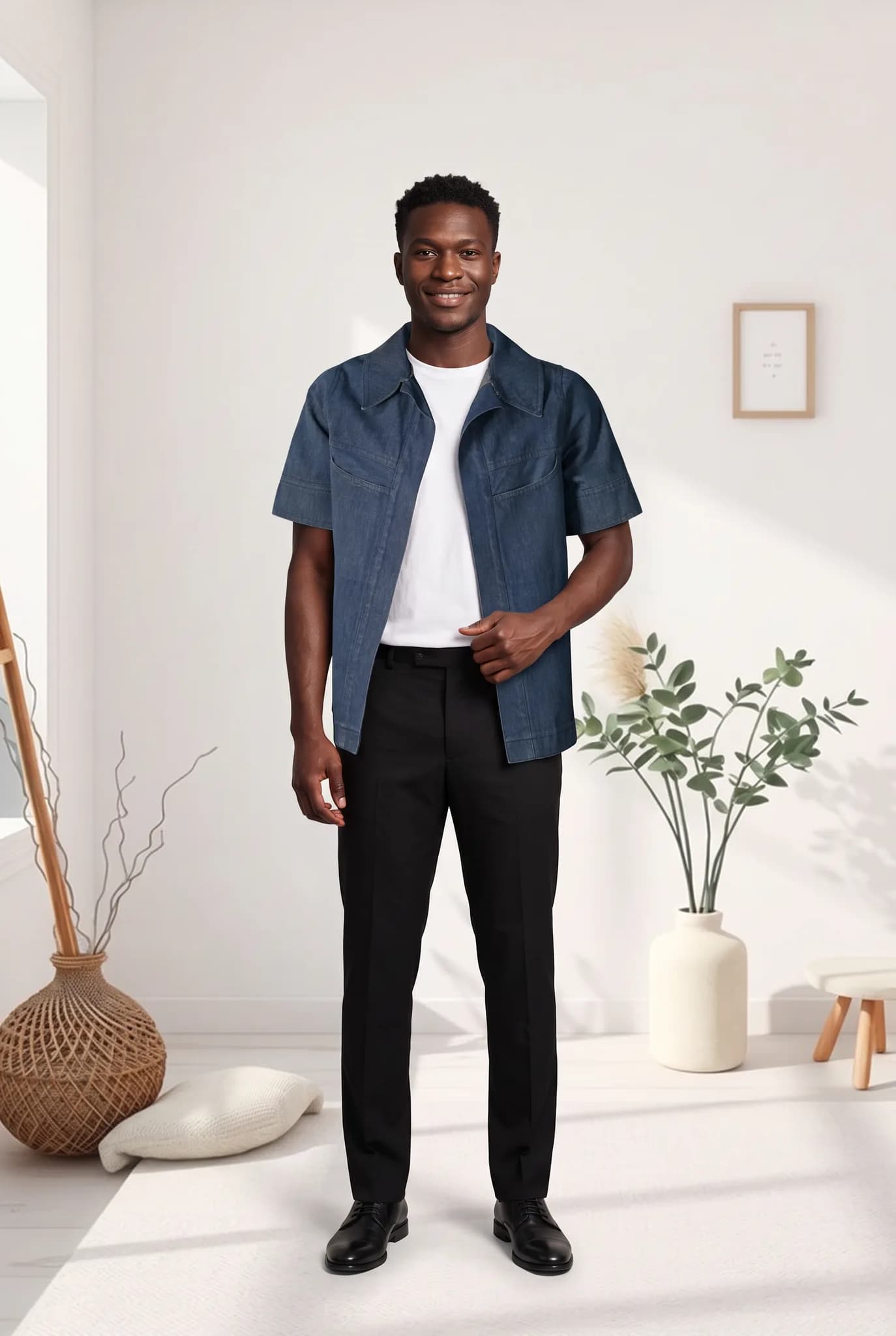
November 9, 2026 · By Haziq Qasmi
Virtual Fashion Models for E-commerce, What You Need to Know
What virtual fashion models are, how online stores use them for product images, what to watch out for and how to add them to your e-commerce store.
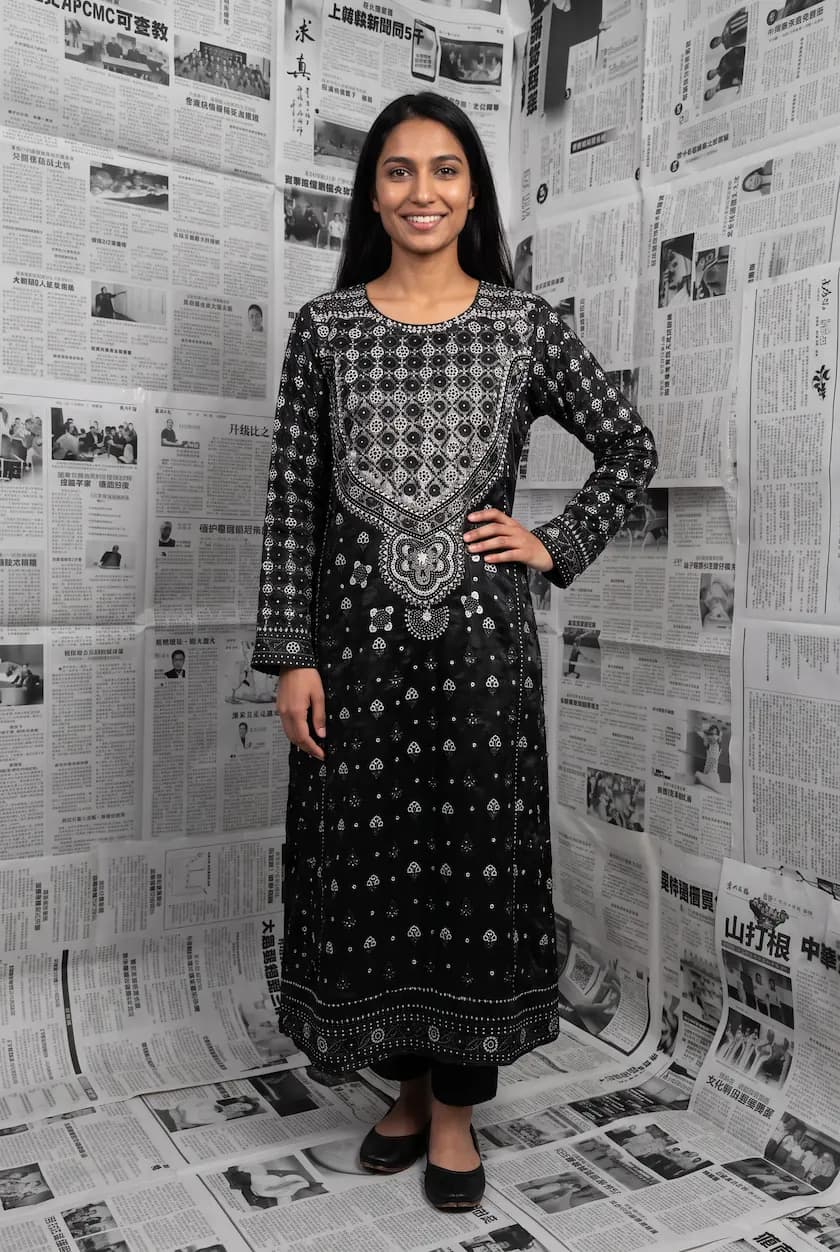
November 9, 2026 · By Haziq Qasmi
How to Create Fashion Campaign Images Without a Photoshoot
How to create fashion campaign images without a photoshoot: plan the story, pick scenes, keep one model and turn your product photos into campaign visuals.